Run a department diagnosis — without a training call
5 steps in just 10 minutes once your students have answers in.
Before you start: the dashboard fills once your students have answered some questions (usually week 1–2 of a pilot). Until then it shows “no attempts” — that's normal, not a fault. Want to see it full now? Open the demo dashboard.
1Sign in, pick your subject
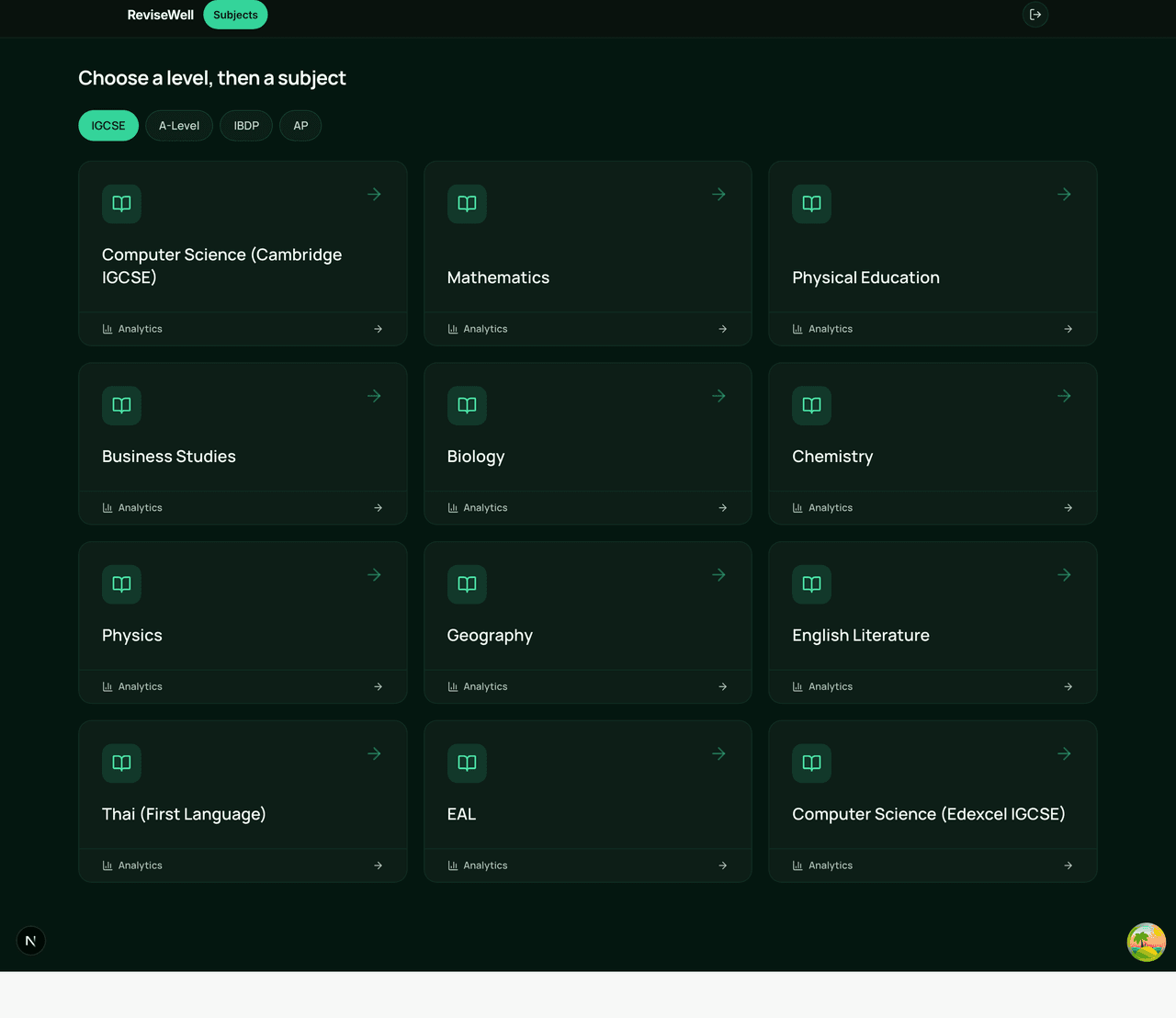
Sign in, choose your level and subject, then open Class Analytics.
2Read your dashboard
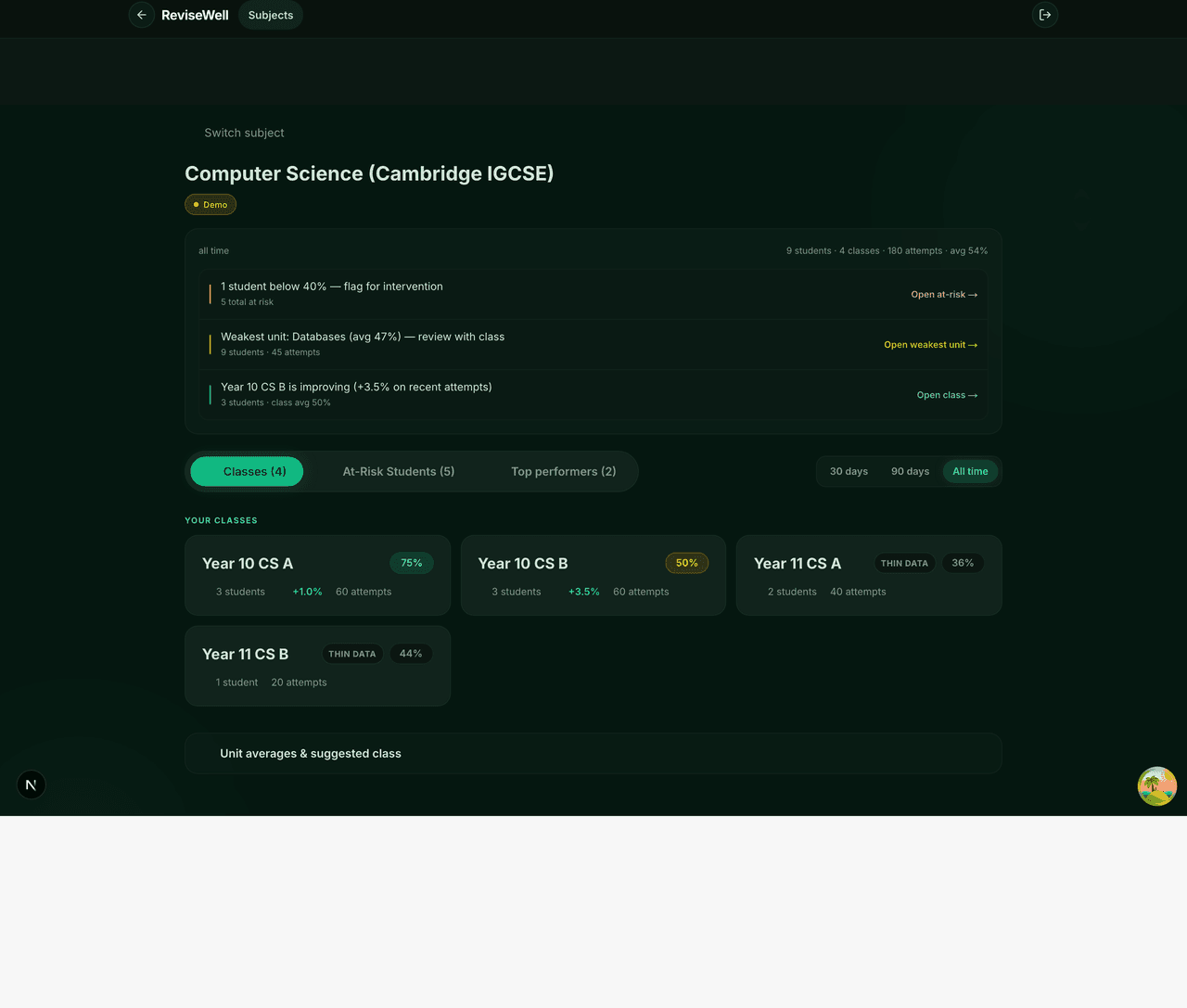
The three headlines say it all: who’s at risk, the weakest unit, what’s moving.
3Open a class
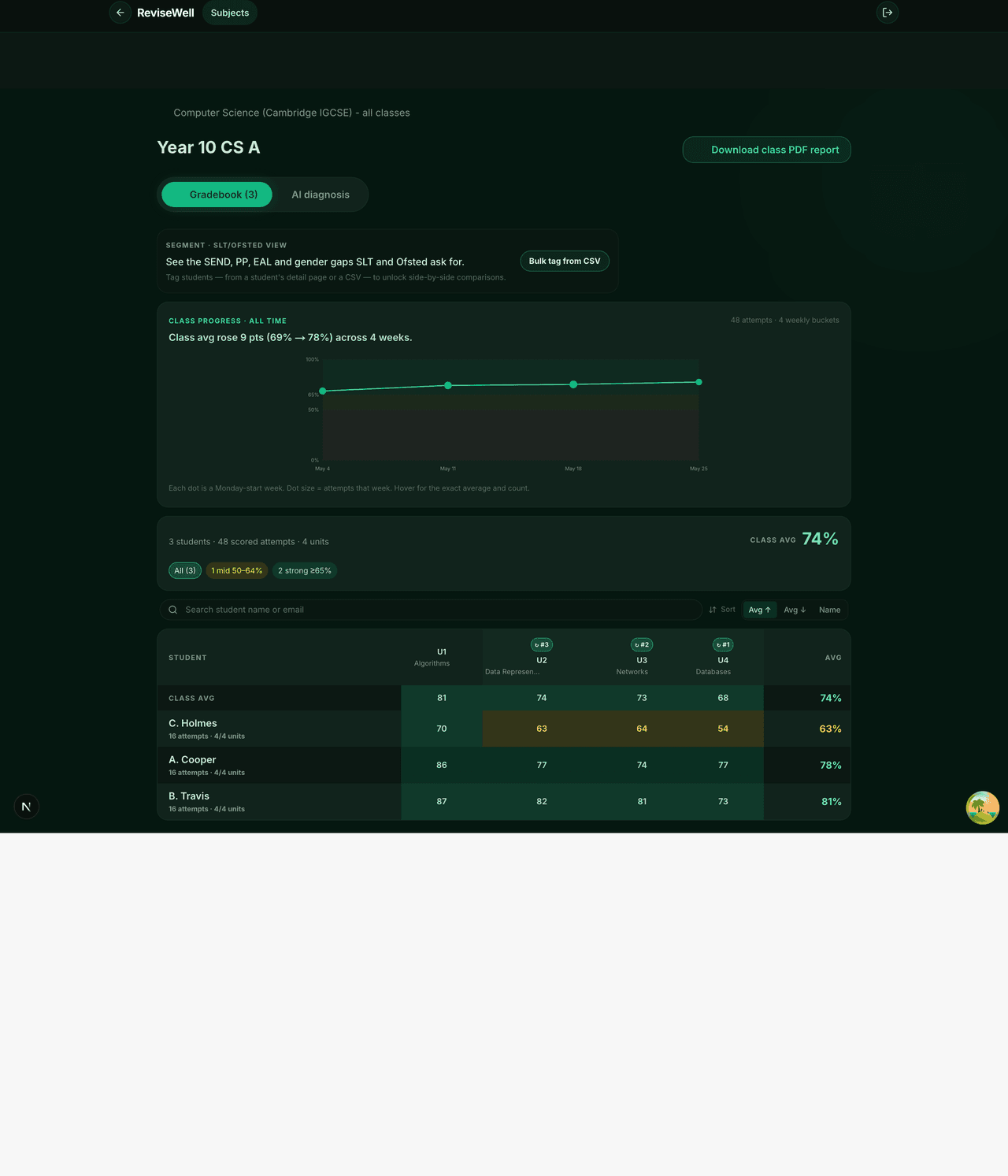
Click a class to see its gradebook, trends, and download the class report as a PDF.
4Read the diagnosis
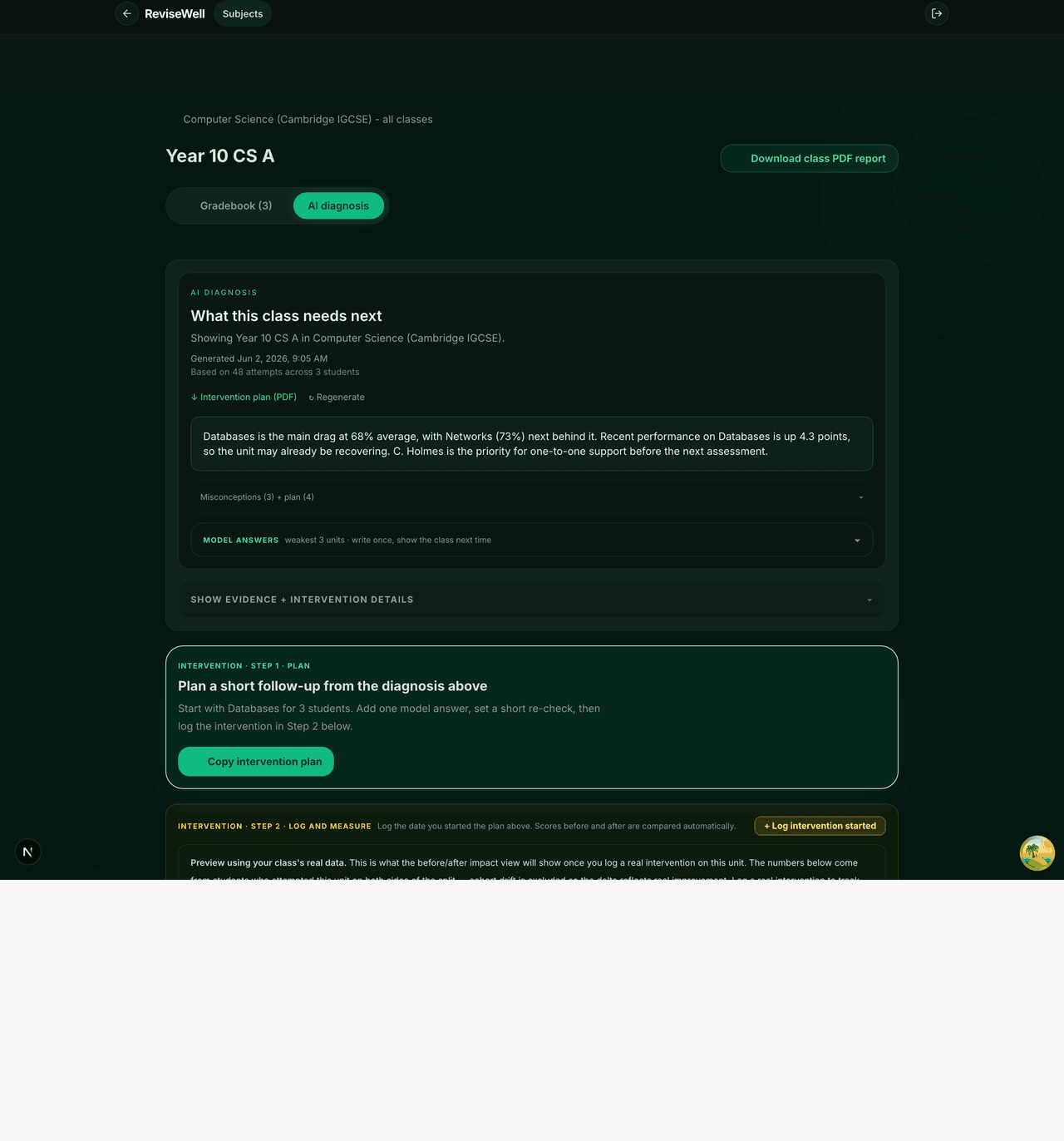
On the AI diagnosis tab: read the observational summary, review data patterns and misconception evidence, and optionally log an intervention to track before/after impact.
5Hand SLT the report
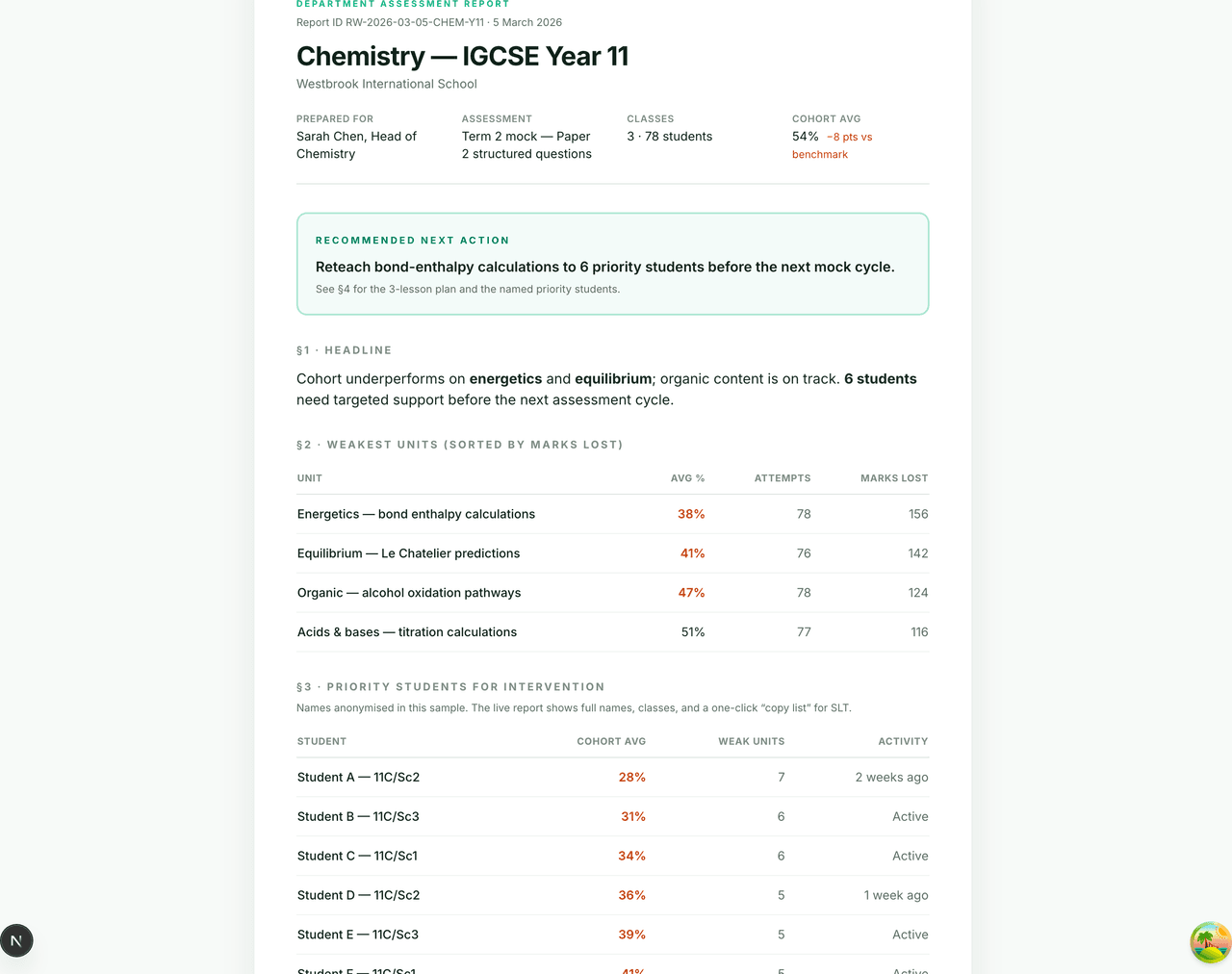
Click Download class PDF report — it saves straight to Downloads, ready to forward to SLT.
That's the loop: sign in → read → diagnose → hand SLT the PDF.
Reopen this any time from the ? icon, top-right. Stuck — sign-in trouble, or answers not showing up? Email contact@revisewell.net.